
Clinical History
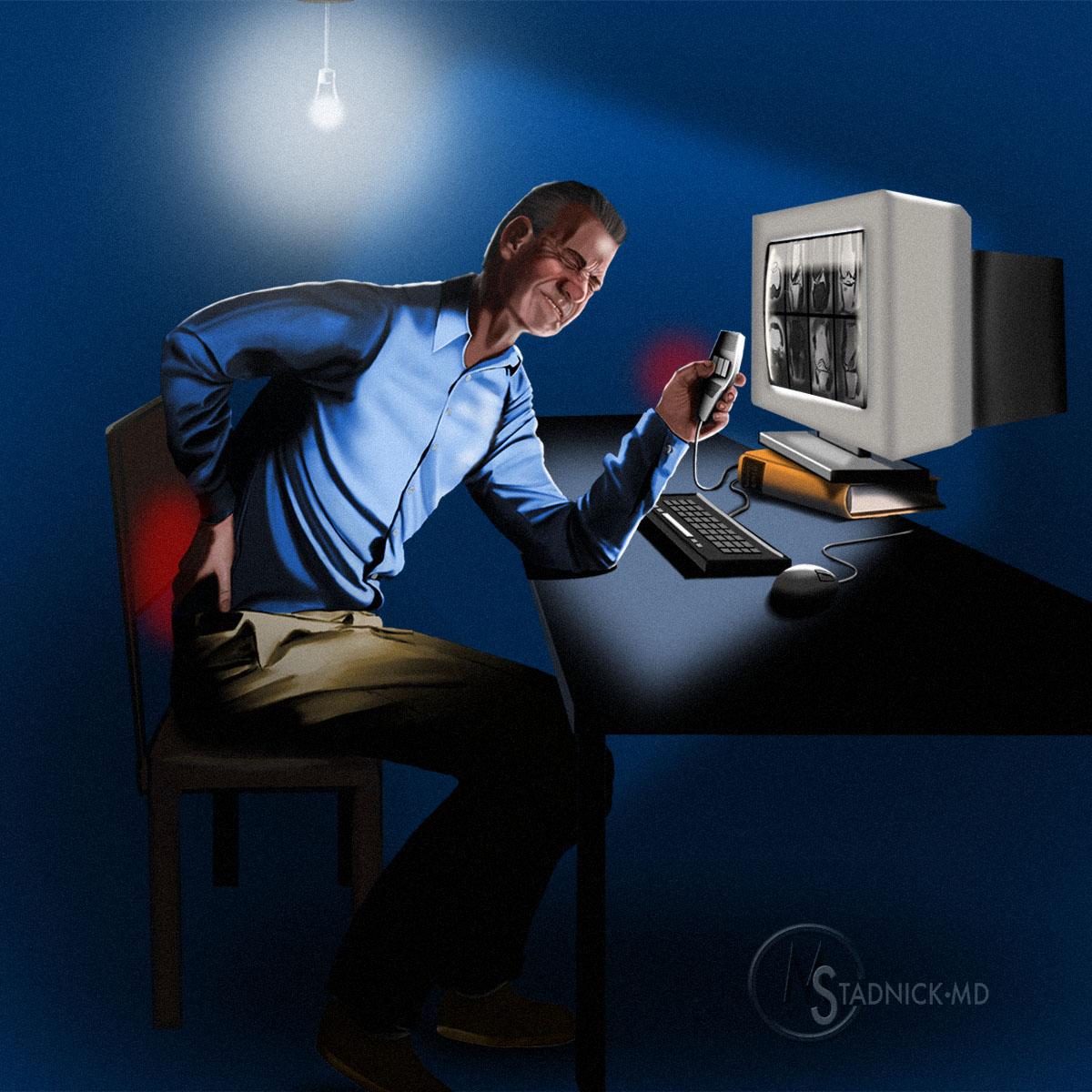
A 45-year-old musculoskeletal radiologist (Figure 1) currently suffers from back pain and wrist soreness at the end of the day. His practice is now requesting that he increase his clinical volume. What tools and strategies can he use to meet this requirement, without lengthening his workday or raising his risk of repetitive stress injuries?
Answer
A variety of commercial hardware and software tools, as well as several personally customizable workflow options, are now available. These allow increased radiologist efficiency while also streamlining common tasks to decrease repetitive stress.
Introduction
Modern day radiologists are tasked with processing vast data sets in diminishing amounts of time. This ongoing struggle makes it challenging to think beyond immediate daily clinical tasks. Taking periodic and regular timeouts to critically analyze one’s workspace, ergonomics, and flow can result in significant gains in efficiency, comfort and overall happiness. This Web Clinic explores several ideas for improving ergonomics and efficiency in radiology workstations. A few hardware ideas for mobile teleradiology workstations will also be addressed. While several device examples will be referenced in this Clinic, Radsource has no official recommendations or relevant disclosures.
Ergonomics
With the transition from film to PACS (picture archiving and communication system), radiologists gained notable efficiency. The digital transformation also made the job more sedentary and prone to repetitive stress injury (RSI). In a study with the majority of radiologists spending more than 8 hours daily at a computer workstation, 58% reported symptoms of RSI and 38% were diagnosed with RSI.1 Common radiology RSIs related to computer mice include tenosynovitis, carpal tunnel syndrome, and cubital tunnel syndrome. Common desk-chair related RSIs include neck and lower back pain.
Fundamental workstation hardware includes a quality desk and chair. Standing desks are particularly helpful in dynamically breaking up long stationary sitting periods, and thus mitigating back pain. Fortunately, many available work desks offer adjustable heights for seated or standing work; one example is the Fully standing desk (Figure 2). While in standing position, an anti-fatigue mat can also be pleasing and prevent foot pain (Figure 3). Many chair options exist, but a height-adjustable chair with lumbar support and adjustable armrests is suggested (Figure 4).
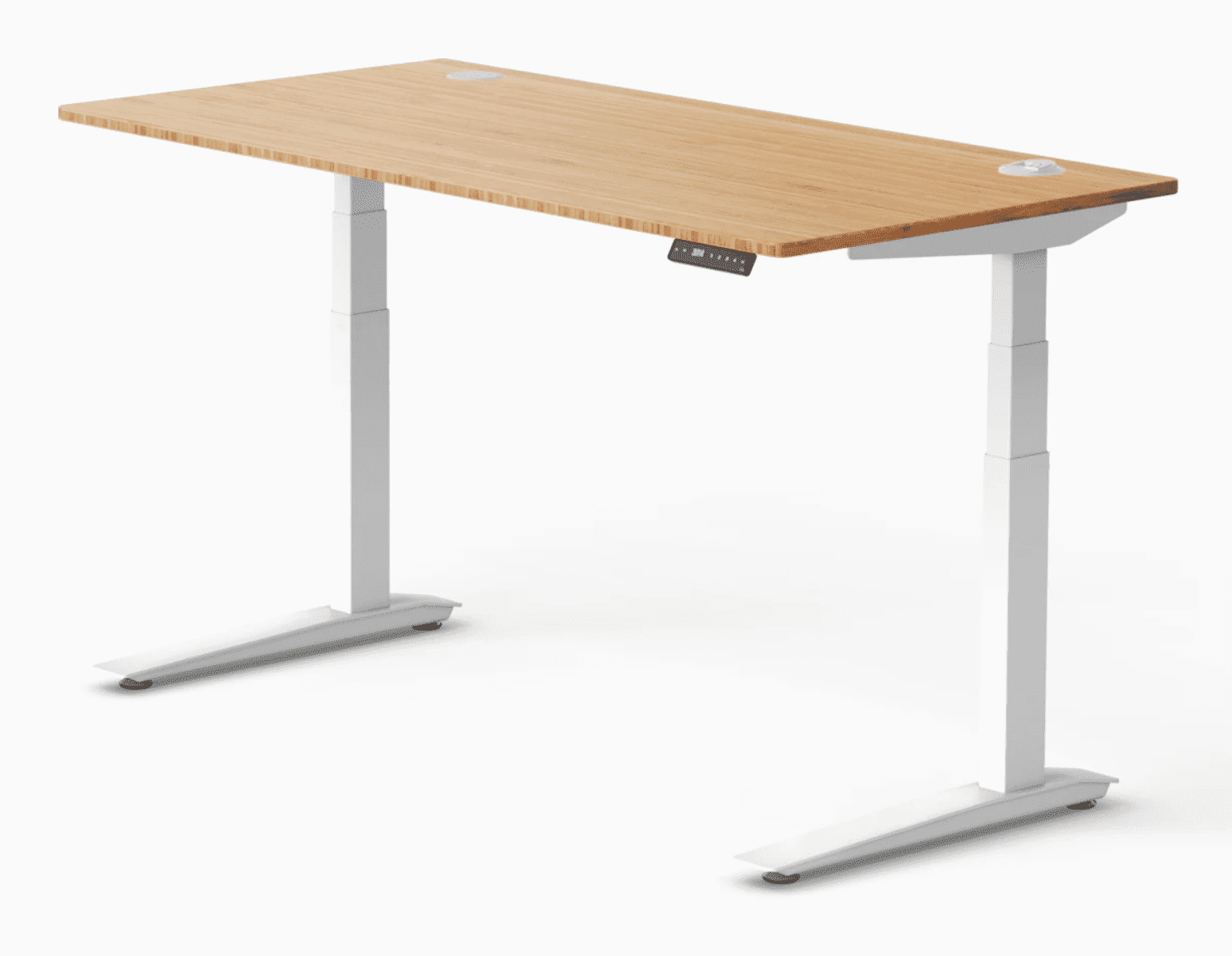
Figure 2: The height of several commercially-available desks can be adjusted electronically or manually, to allow work in any position from seated to fully standing. Pictured is the Herman Miller Jarvis standing desk.
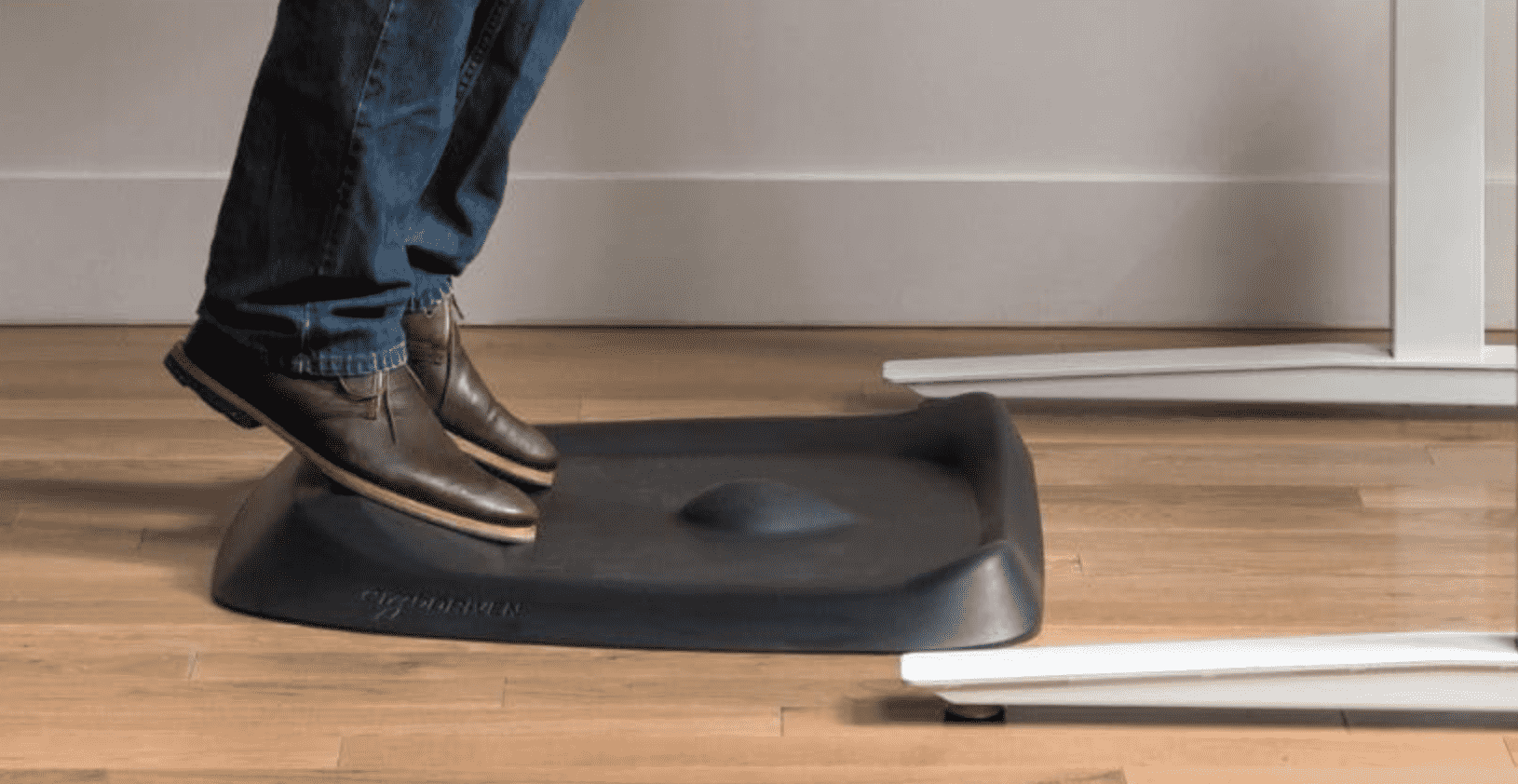
Figure 3: Anti-fatigue mats can decrease fatigue and lower extremity pain associated with prolonged standing. Shown is the Topo Comfort Mat by Ergodriven.
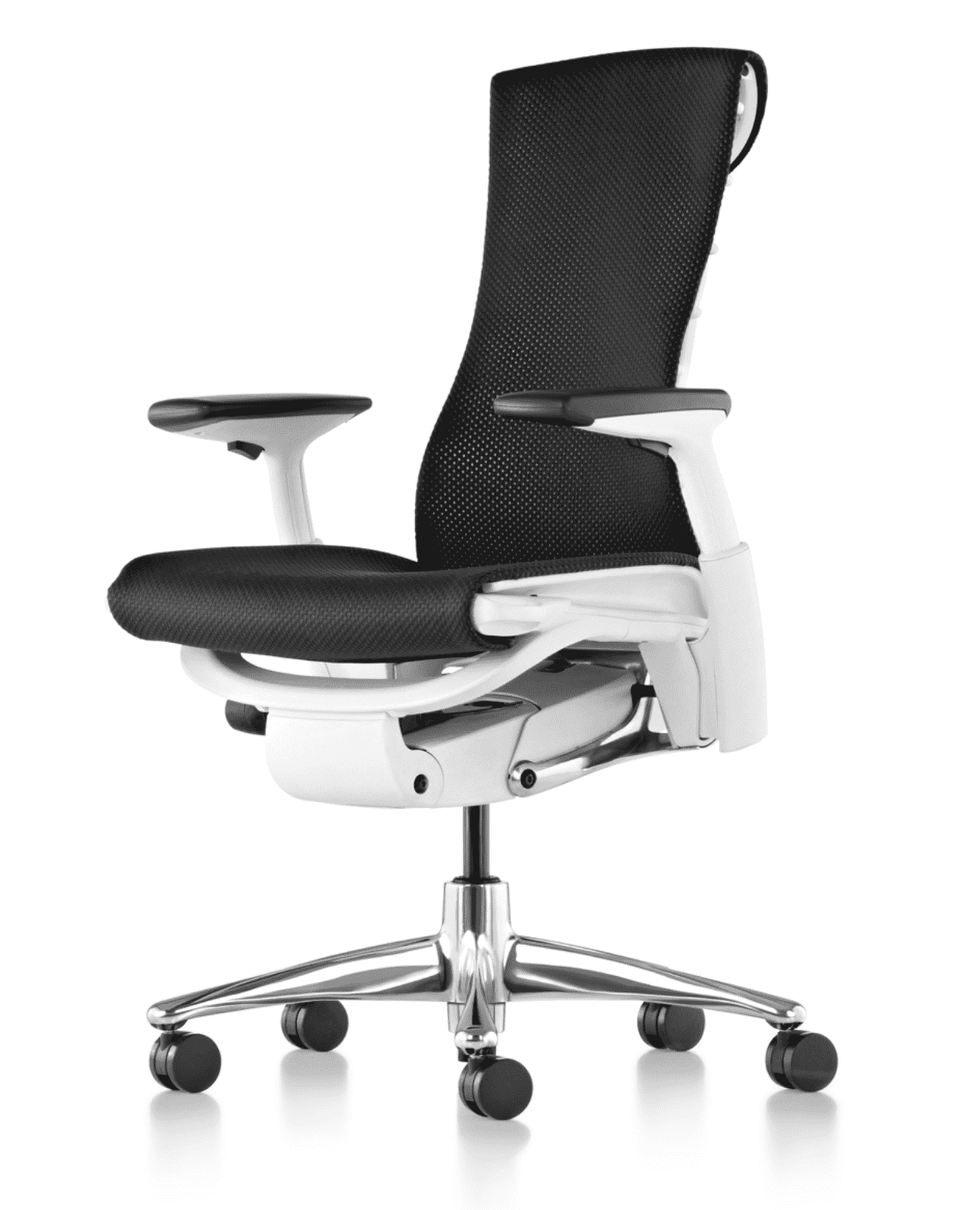
Figure 4: Ergonomically-designed chairs allow for multiple adjustments including height, lumbar support, and arm rest positions to increase comfort and decrease strain on the body. Above is the Herman Miller Embody.
Analyzing the acoustics of your reading space is simple, often overlooked, and can be time well spent. Radiology workflow relies heavily on accurate speech recognition, and treating a room with acoustic dampening materials can improve this recognition. Sound waves reflectively bounce off shiny hard surfaces (such as empty walls and concrete floors), creating unwanted reverberation that degrades speech recognition. Adding drapes, carpets, and other acoustically absorbent material can help dampen these unwanted reflections. Minimizing audio distractions and interruptions from others may require some creative thinking and personal management. Noise cancelling headphones with or without relaxing music can be a useful way to focus.
An introductory item to improve mouse-related wrist ergonomics is a gel support mouse pad (Figure 5). This inexpensive device promotes proper wrist alignment, mitigating symptoms of carpal tunnel syndrome and other RSIs. Mouse pads often improve pointer precision. Worn or dirty mousepads conversely may degrade performance and periodically need replacement.

Figure 5: Mouse pads with additional wrist support encourage proper wrist alignment, decreasing the risk of overuse conditions such as carpal tunnel syndrome. Shown is the Belkin WaveRest gel mouse pad.
Numerous ergonomic input devices exist to combat wrist-related RSI. An interesting alternate approach to a conventional mouse is the Rollermouse by Contour Design (Figure 6). This “mouse” is designed to be manipulated by either or both hands in an ergonomically neutral position, simulating mouse movements with a scrolling bar moving in vertical and horizontal planes. Several variations of this product exist, all with customizable buttons to drive the PACS or VR (voice recognition) software. A separate scroll wheel located in the center of the Rollermouse can also be used to scroll PACS images, with either or both hands. To use this type of mouse, the radiologist would need a handsfree dictation microphone solution, discussed below.

Figure 6: Alternatives to conventional mice substitute scrolling motions for mouse movements. The centrally-located buttons and wheel can be manipulated using either hand. Shown is the Rollermouse by Contour Design.
Foot controllers (Figure 7) provide an additional approach to offload repetitive upper extremity tasks. These are typically used to control dictation microphones (e.g. record, next field, previous field, sign report, etc.), but can also be configured to drive PACS or other computer functions. When used to control a microphone, they are typically used in conjunction with a handsfree dictaphone solution.
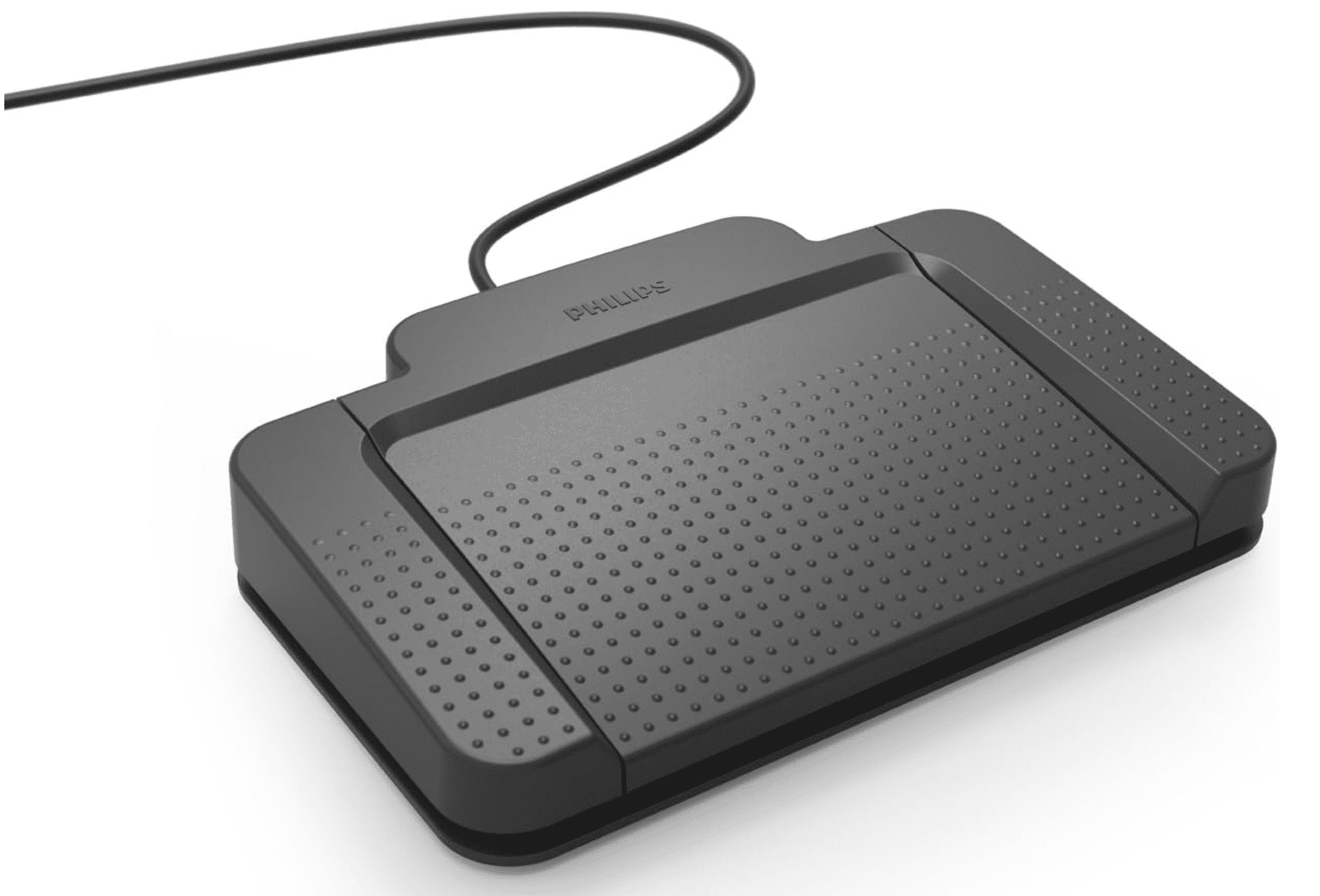
Figure 7: A foot controller allows the radiologist to partly control the dictating system and/or PACS through pedals, decreasing tasks typically requiring the hands. This model is the Philips ACC2320 3-Pedal International-Style Foot Control.
Eliminating the need to hold a dictation microphone can be obtained with a variety of approaches. Radiologists can convert their existing dictaphone into a hands-free desktop solution utilizing a desktop mount (Figure 8a), tripod (Figure 8b) or gooseneck holder (Figure 8c). Several wearable headset microphone options exist; however, these tend to be somewhat restrictive and expensive. Many desktop standalone microphone options also exist (Figure 9), which can provide excellent recognition and tend be less expensive than customary radiology dictaphone mics.

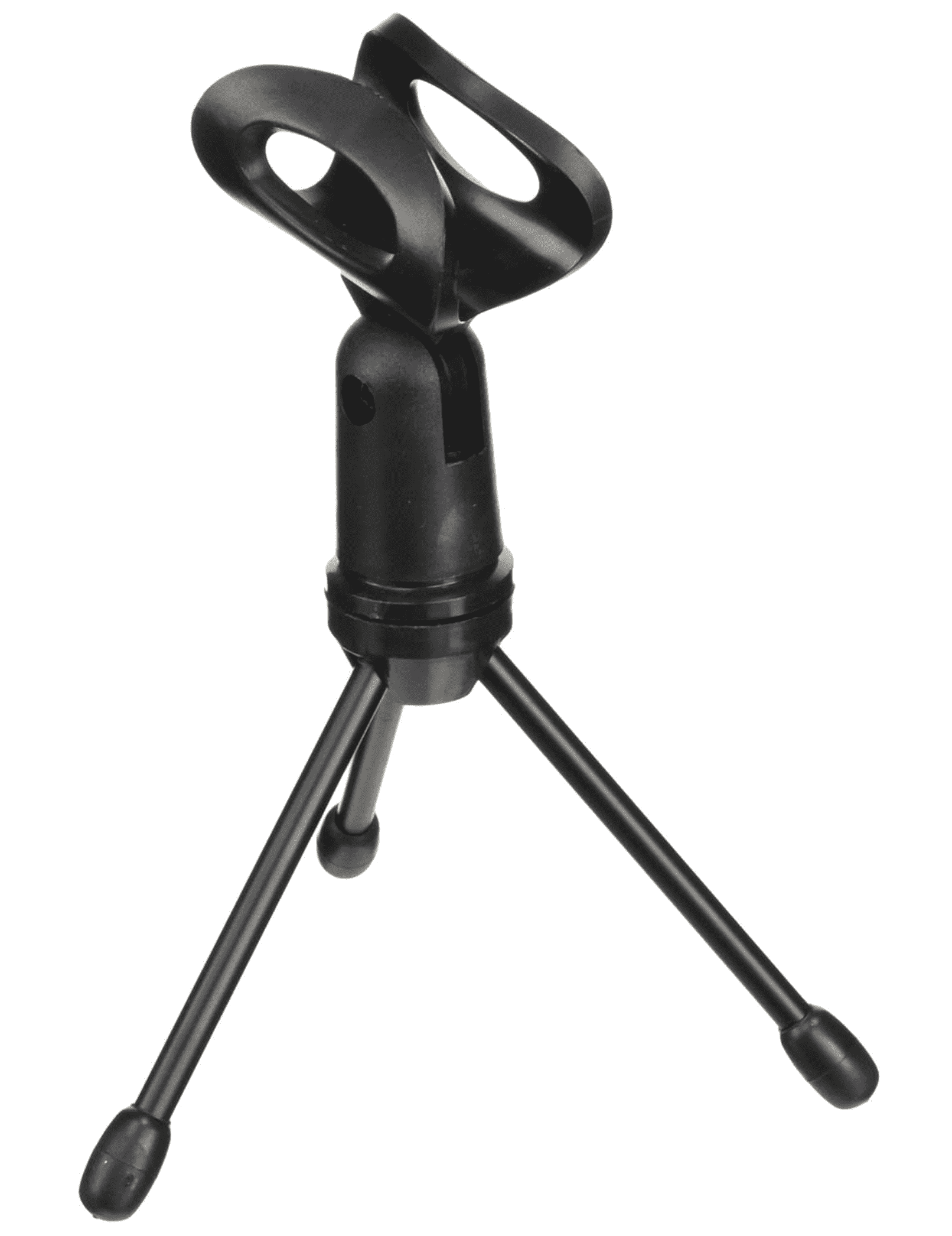
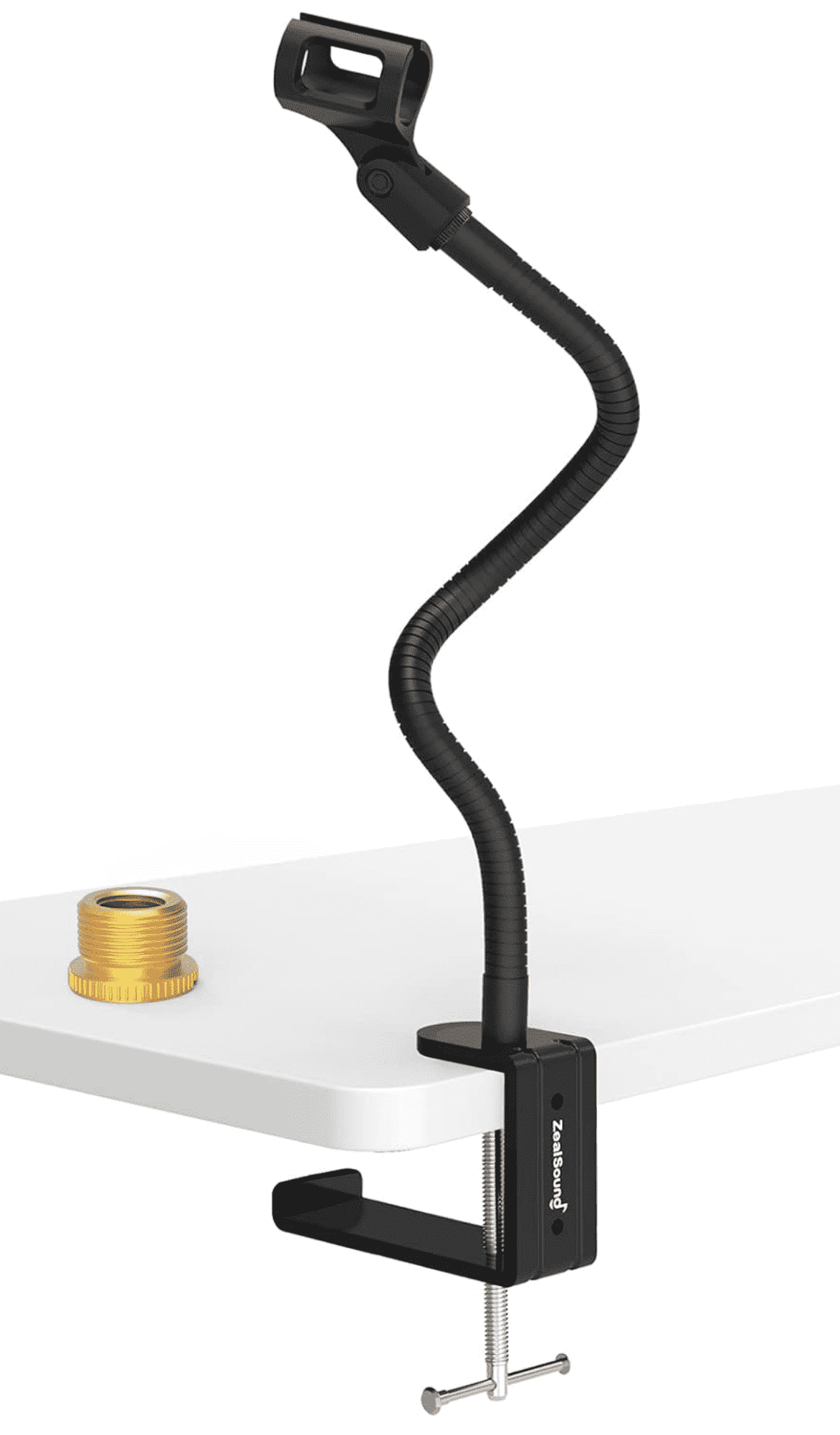
Figure 8: Hands-free reporting is possible when using a holder capable of supporting a dictating microphone. Options include (8A) desktop mounts (ECS WordFlex Gooseneck Holder), (8B) tripods (Gator Frameworks Mini Tripod Desktop Microphone Stand), and (8C) Gooseneck (ZealSound Microphone Stand, Flexible Gooseneck Desktop) designs.
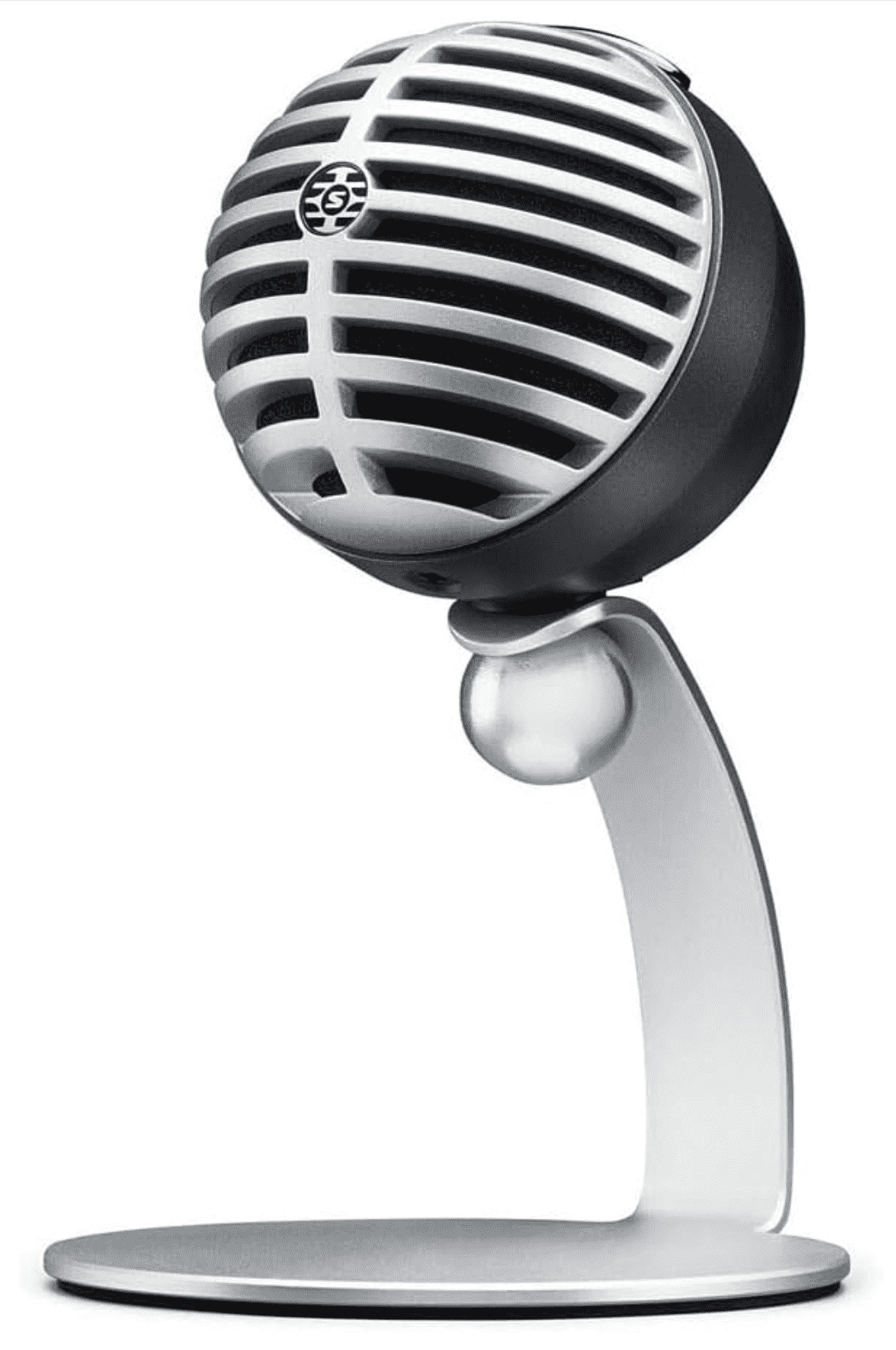
Figure 9: A standalone desktop microphone can often be used in place of a dedicated voice-recognition mic. Pictured is the Shure MV5 Digital Condenser Microphone.
Efficiency Leveraged Devices
While the following input devices are also ergonomic, we will next explore more productivity leveraged hardware ideas. One of the quickest ways to introduce technology efficiency into a radiology PACS workflow is with a programable mouse. While many mouse options exist, it useful to explore ones with supplemental user-customizable buttons to drive PACS and VR commands. While many radiologist workstations are administratively locked from using 3rd party software; several mice can be pre-programmed on a separate personal computer, saving the functions directly to the mouse which can then be used on an administratively locked PACS computer. An excellent option is the Logitech G604 mouse (Figure 10a), which contains 13 programable buttons located in various areas on the mouse. Unfortunately, this mouse has been discontinued but is still available in refurbished and used markets. Similar alternatives include the UtechSmart Venus (Figure 10b) and the Pro Razer Naga V2 (Figure 10c).
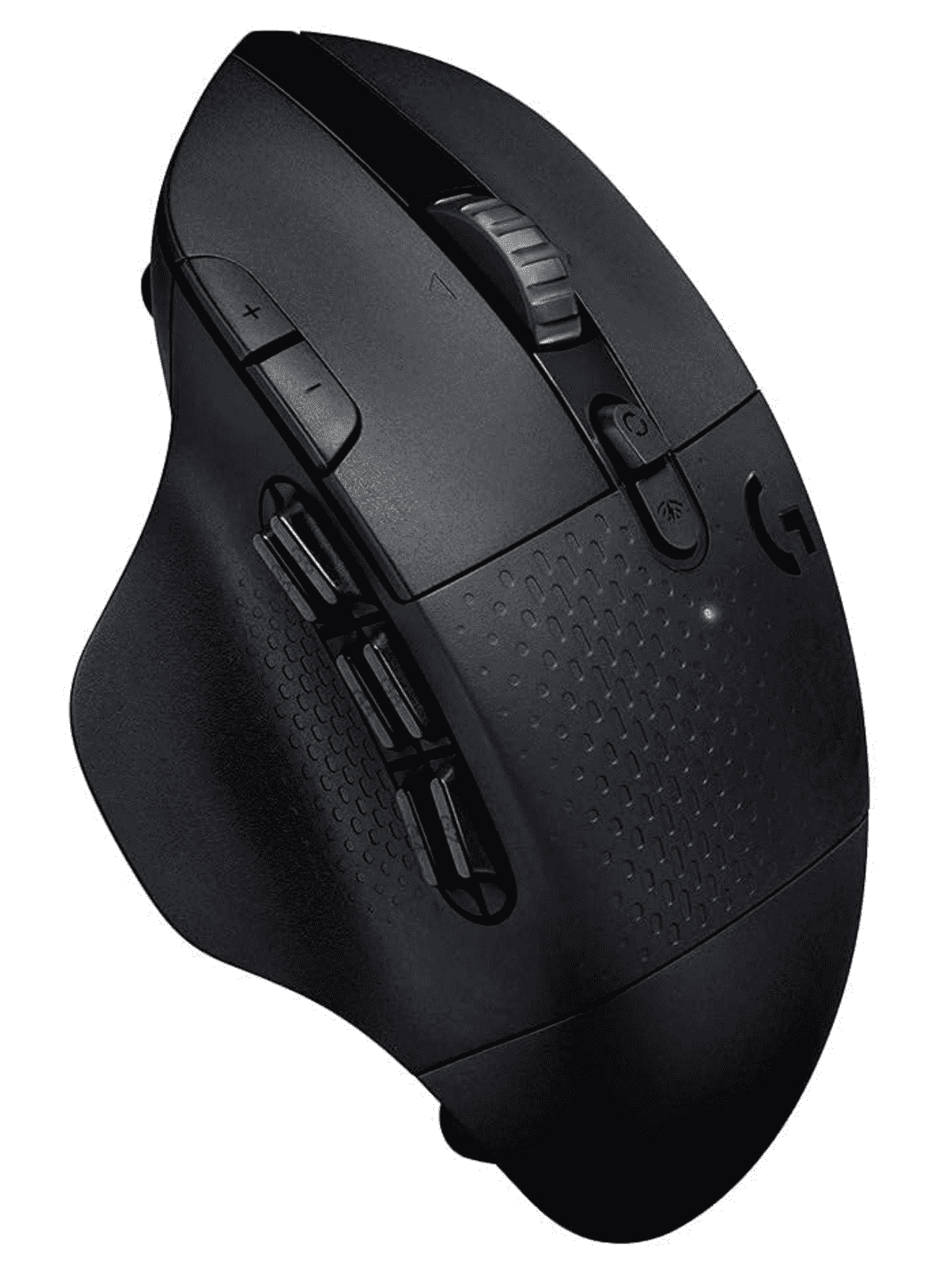

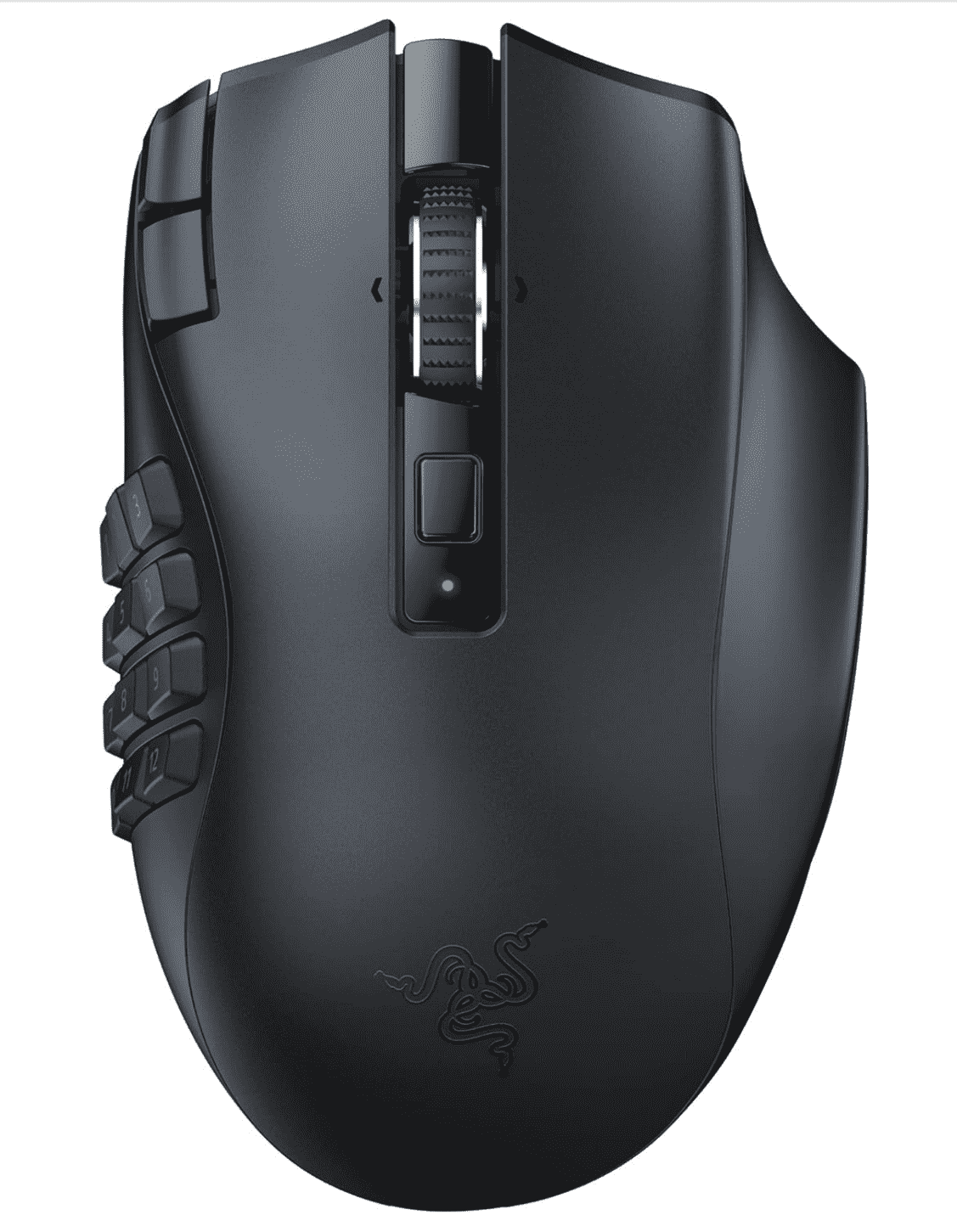
Figure 10: The multiple buttons on user-configurable mice, designed primarily for gaming, can be reprogrammed to perform actions on the PACS and in voice recognition software. Examples include (10A) the recently discontinued Logitech G604 Lightspeed Wireless Gaming Mouse, (10B) the UtechSmart Venus Pro Gaming Mouse, and (10C) the Razer Naga V2 Gaming Mouse.
Programmable mouse buttons can be customized to the radiologist’s preference and workflow (Table 1). Example mapped PACS functions include: measure distance, measure region of interest density, measure angle, next series, previous series, image rotate, image flip, etc. Example mapped VR functions include: record, next field, previous field, sign report. Useful global functions include: Double click, delete, copy, paste, undo, and redo. Most modern PACS and VR systems have hotkey options for these command functions (e.g. m, F3, control z, etc.), typically detailed in the software user manual.
Table 1: Example of PACS, voice recognition (VR), and global functions that can be remapped to mouse buttons or other peripherals.
| PACS Function Examples | VR Function Examples | Global Function Examples |
| Measure Distance | Record | Double Click |
| Measure ROI Density | Next Field | Delete |
| Measure Angle | Previous Field | Copy |
| Next Series | Sign Report | Paste |
| Previous Series | Show Reporting Window | Undo |
| Rotate Image | Hide Reporting Window | Redo |
After identifying the specific hotkey for a desired function, the hotkey can then be programmed into the mouse software (Figure 11). PACS commands which require multiple mouse clicks can often be programmed into a mouse or gaming pad macro, improving efficiency by transforming a multistep function into one button click (Figure 12). More robust software will even specify which software window should receive a given hotkey function, preventing an erroneous hotkey entry into a non-target window. For example, if the “m” hotkey is intended to activate the PACS measure tool, this ensures the PACS window is designated as the target, avoiding the accidentally insertion of the letter “m” into the radiology report dictation window.


Figure 11: Software hotkey commands can be mapped to programable mouse buttons. (11A) The Logitech G604 GHub screen used to reassign mouse buttons. (11B) Example showing remapped side mouse buttons including PACS measure (Ctrl-M) and Image Rotate (R) functions, VR Next Field (F2) and Previous Field (F1), Delete, and a custom macro for drawing a best fit circle in PACS.


Figure 12: Many gaming mice (See Figure 10) and gaming pads (like the Razor Tartarus Pro, Figure 13A) can be configured to run custom macros, which are particularly useful for multistep processes. (12A) Example showing creation of a best fit circle within InteleViewer PACS, which is normally a 2-step process, first requiring a hotkey to be pressed (Q) followed by a second key combination (shift-Q). (12B) These 2 steps can be combined into a single mouse button click by creating a macro using the Logitech G604 GHub software.
Further degrees of efficiency can be leveraged by introducing a separate left-handed input device, such a gaming pad, used in conjunction with a right-handed mouse. Together, the two devices are strategically customized to execute the radiologist’s most common workflow tasks. As with previous ideas, this technique also requires a hands-free microphone. Several left-handed gaming pads exist and can be customized for radiology applications. In general, the world of computer gaming provides a tremendous resource of ideas for the radiologist2, as the industry regularly designs new products capable of entering commands with rapidity, precision, and mindful ergonomics. The Razer Tartarus Pro (Figure 13a) is particularly useful for radiology, as the device contains a scroll wheel and joystick, both of which can be configured for PACS image navigation. The device contains 21 additional buttons which can be configured to drive a PACS, VR software, EMR, etc. Contour Design also manufactures left-handed pad options, such as the Shuttle Pro series (Figure 13b).
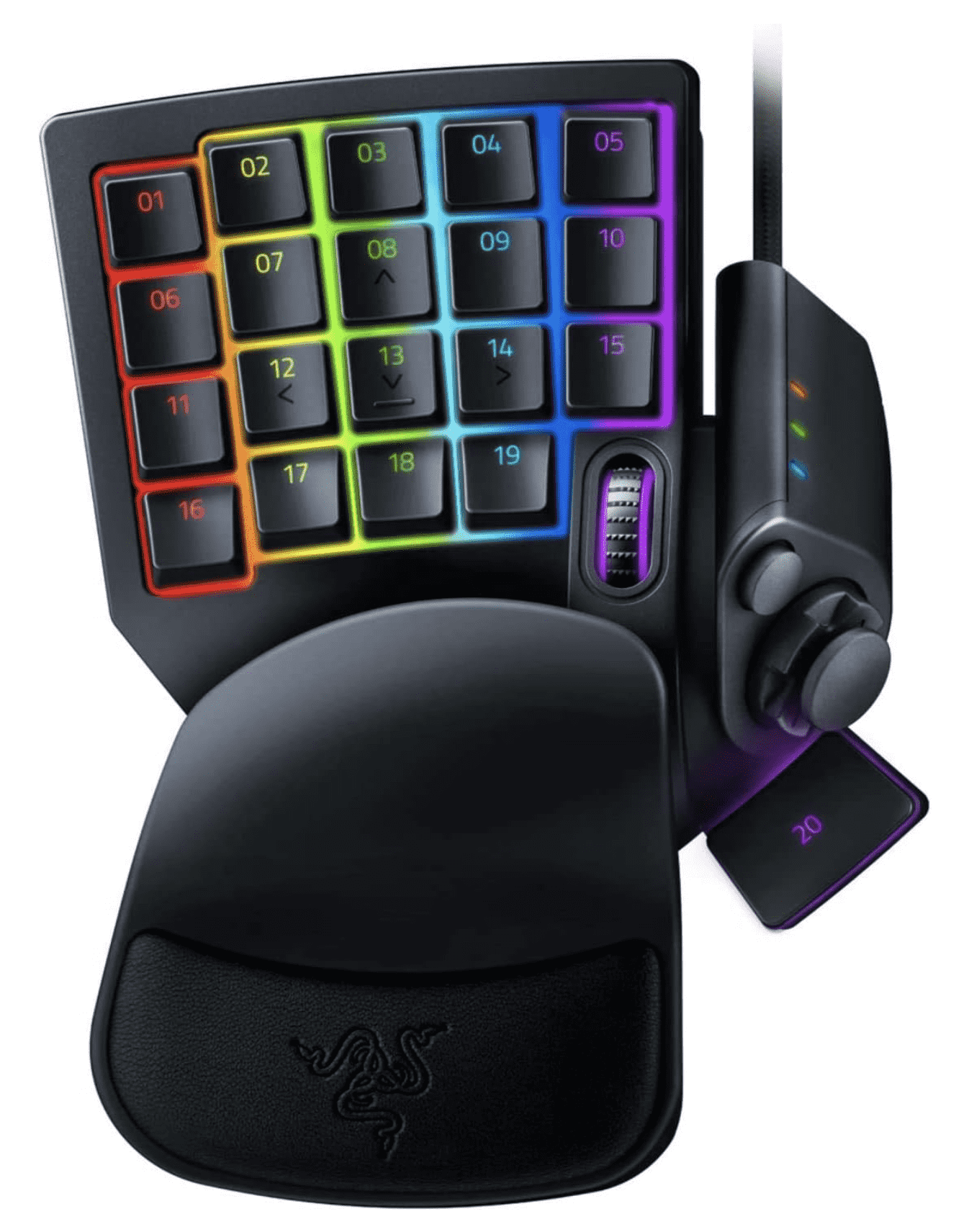

Left-handed controllers, designed primarily as gaming pads, can have multiple buttons and additional interfaces like scroll wheels and joysticks that can be reprogrammed for radiologist tasks. (13A) Razer Tartarus Pro Gaming Keypad. (13B) Contour Design ShuttlePRO v2.
Radiologists new to these devices can certainly become overwhelmed by a multitude of new and unfamiliar buttons. To combat this problem, a few techniques may be used to identify and recall the customized remapped buttons. First, try directly labeling the customized buttons using a label maker device (Figure 14). Second, consider using color coded illuminated buttons (Figure 15) available in many gaming pads, designated the colors to specific or grouped tasks (e.g. record button in red, next/previous field in green, PACS commands in yellow, global commands in blue, etc.). Third, adding braille dots to the keys (Figure 16) can create tactile identification of a button, analogous to the bump on the central 5 key of a numeric keyboard. Similarly, using a soldering iron to burn small divots into a keyboard or mouse button is also a useful trick to add tactile sensation into a button (Figure 17). These activities promote efficiency by helping the radiologist stay focused on the images, rather than hunting for hotkeys or navigating menus.

Figure 14: Label makers can make custom labels to identify the buttons on a gaming pad or keyboard. Shown is the Brother P-Touch Label Maker.

Figure 15: Example of a customized gaming pad (Razer Tartarus Pro) including color coding and labelling. Buttons have been re-mapped to Powerscribe, PACS, and a few general commands. Custom labels were made using a label maker. The buttons have been color coded using the standard Razer software. To improve tactile awareness, braille dots have been added and some of the buttons have been etched with a soldering iron.

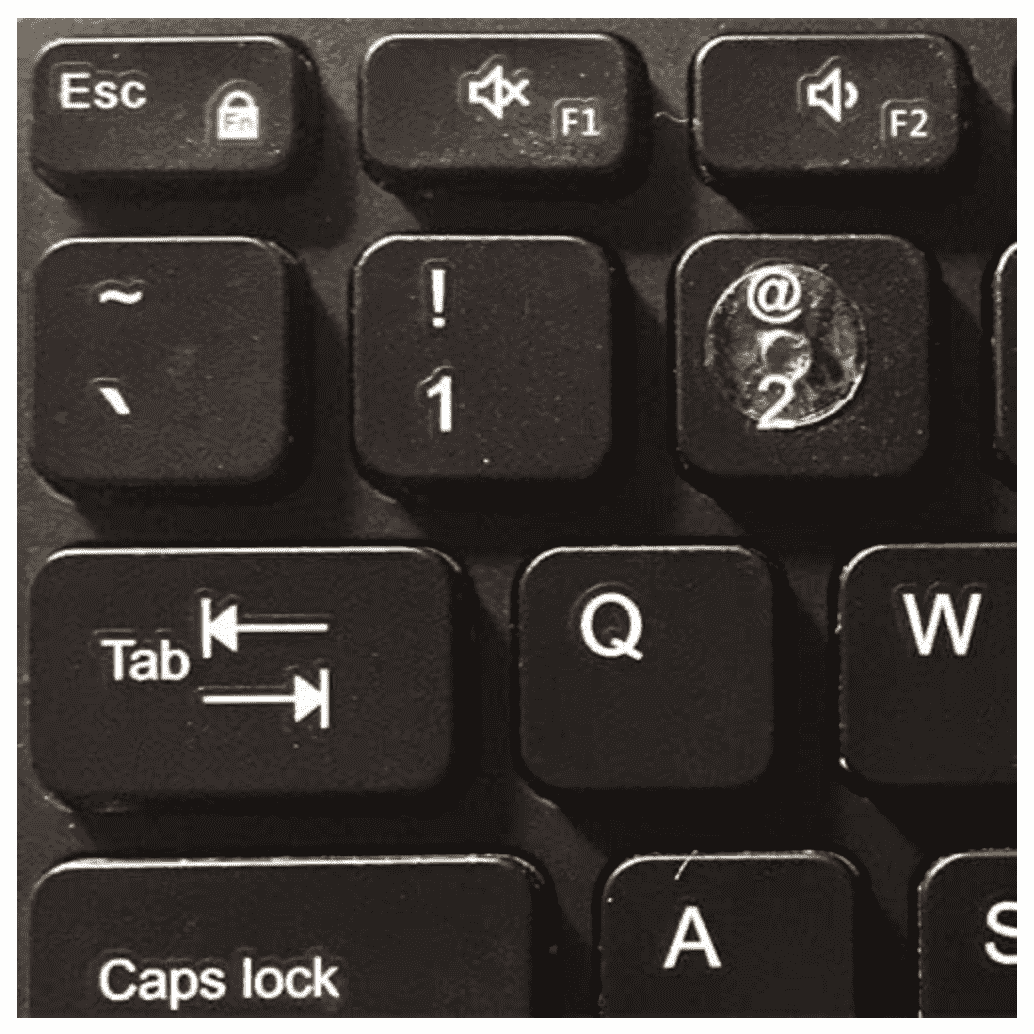
Figure 16: Keyboard Tactile Awareness can be improved using Braille-like Dots. (16A) Original Loc-Dots – Computer Gaming Keyboard Tangible Training Location Learning Decal Stickers. (16B) A localizing dot has been added to the "2" key.
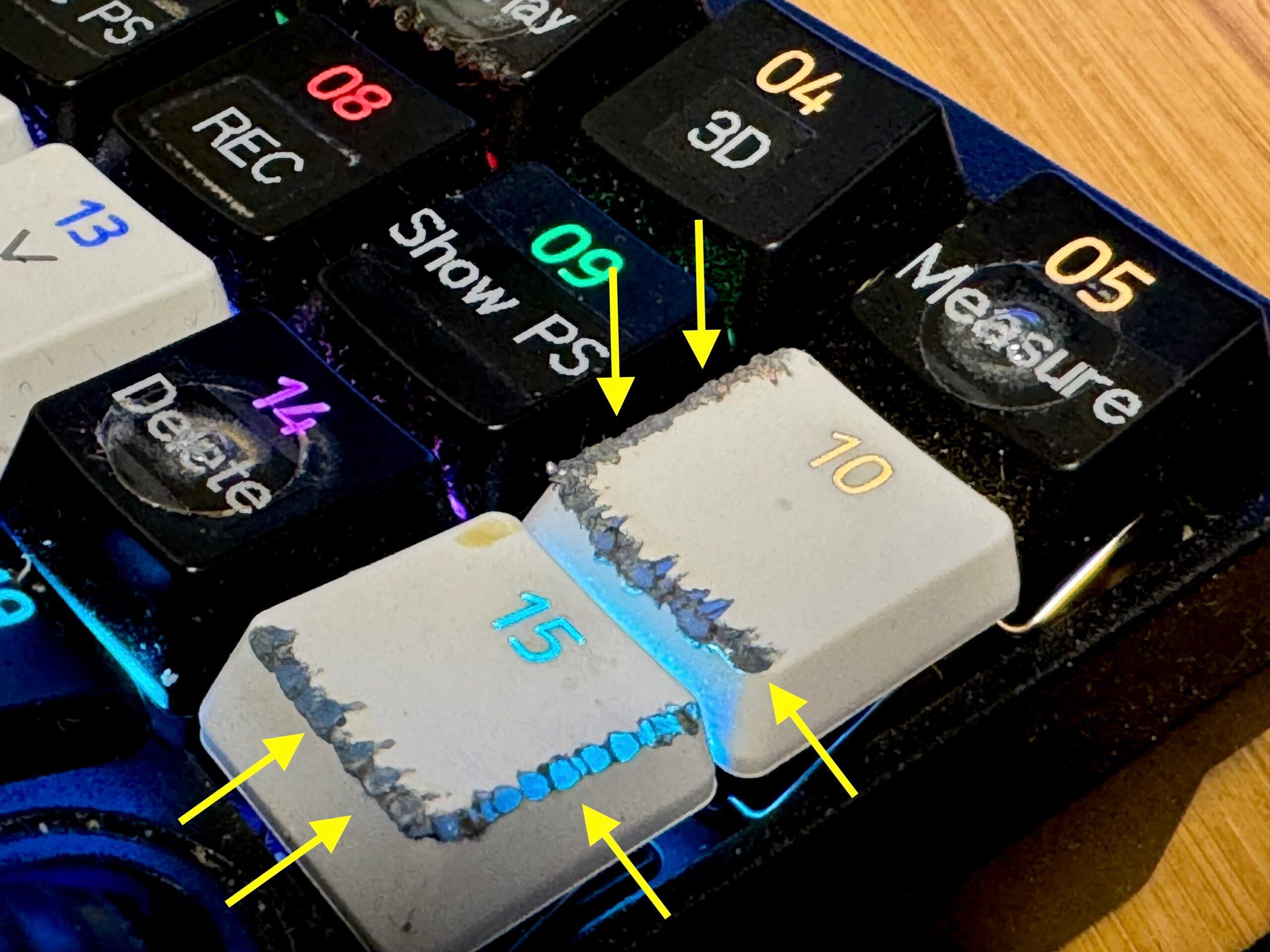

Figure 17: Etching the side of keyboard or mouse buttons with a soldering iron can improve tactile awareness. (17A) Etched keyboard buttons (arrows). (17B) Etched central side mouse button.
Psychology of Change
At this point, we must acknowledge (and then befriend) a large elephant in the room. Psychological barriers prevent most radiologists and (other computer users) from modifying their workflow habits, even when they realize that a more efficient workflow exists.2,3,4,5,6,7 Why is this? After navigating a successful undergraduate education, 4 years of medical school, 5 years of radiology residency, fellowship, and years of medical “practice,” one would think a radiologist would possess the delayed gratification discipline required to adopt a new procedural skill. Yet most radiologists prefer to stick with the same familiar workflow, rather than invest in new techniques which could improve efficiency. To overcome this barrier, it is helpful to consider the task as an investment which will ultimately payback time after doing the work. Remapping presents an opportunity to exercise neuroplasticity, which is a useful habit. To ease the learning curve and lower stress, try carving out dedicated non-clinical time (e.g. after-hours, weekend, vacation) to practice these new skills and experiment. Think of it like continuing medical education.
Optimizing Existing Software
As we critically analyze our radiology workstation workflow, it is helpful to identify knowledge gaps in the software we are already using, searching for currently available but unused functions which can improve efficiency. Vastly underutilized excellent information resources are the PACS and VR software user manuals. These may be downloadable as PDFs under the Help menu of the software (Figure 18). Simply browsing the table of contents can help a radiologist identify knowledge gaps, subsequently leveraged into new efficiency tools through target reading.
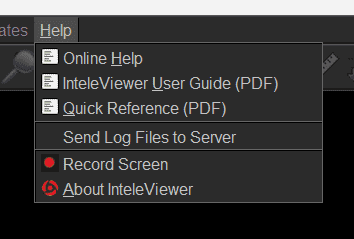

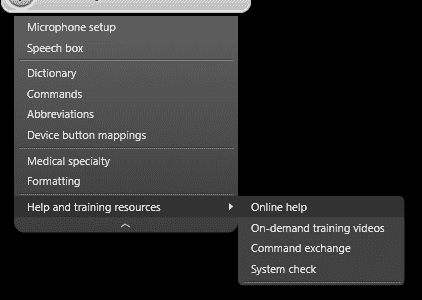
Figure 18: Software User Guides. Browsing the PACS and voice recognition software user guides can be a useful resource to discover efficiency building ideas. Simply browsing the Table of Contents is a productive exercise, subsequently target reading areas of interest. Specific questions can often be quickly answered using the Index or Find feature. Accessing user guides for (18A) InteleViewer IntelePACS, (18B) Nuance Powerscribe 360, and (18C) M*Modal Fluency for Imaging.
“Pick Lists” are an example of VR efficiency tool (Figure 19). This feature, offered by modern VR systems and often underutilized, allows the radiologist to save time by instantly transcribing common phrases, relevant to unique area within the report, from a customized menu of options. If this feature is unfamiliar to you, consider browsing your VR’s User Manual.
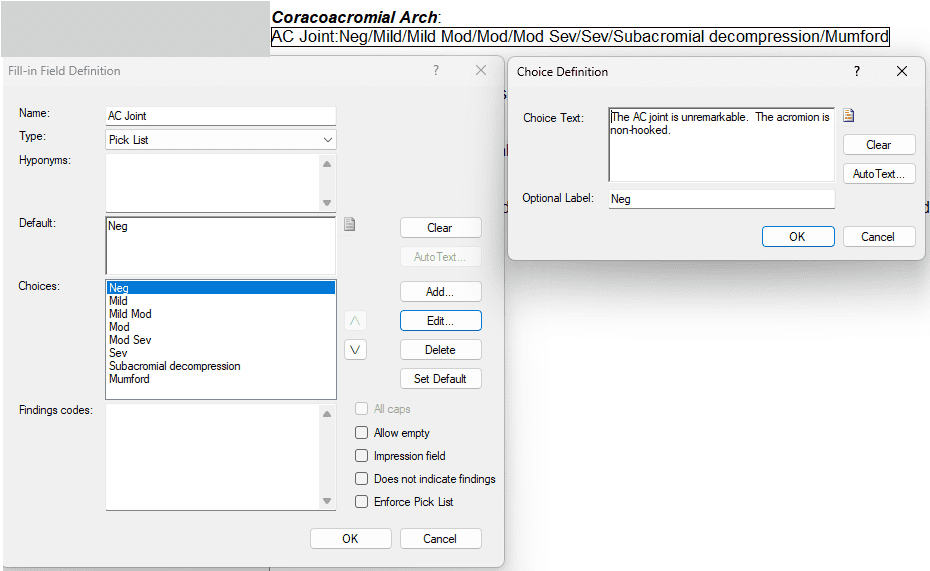

Figure 19: Voice recognition "pick lists." Within a given field or section, multiple commonly dictated dialogue options can be created. When used in a template, the desired response option can be selected with a voice command or mouse click. Examples showing various descriptions of acromioclavicular joint findings in (19A) Powerscribe 360 and (19B) Fluency for Imaging.
Hanging protocols (Figure 20) are an example of a PACS efficiency tool. Designing reproducible image hanging protocols can be challenging, but the tools for doing so are often outlined in the user guide and occasionally videos. While it is probably unrealistic to expect hanging protocols to function perfectly in all situations, it is realistic to design protocols which meaningfully save time. If an administrator or superuser has already created protocols, it is often helpful to begin with those, subsequently customizing to individual preference.
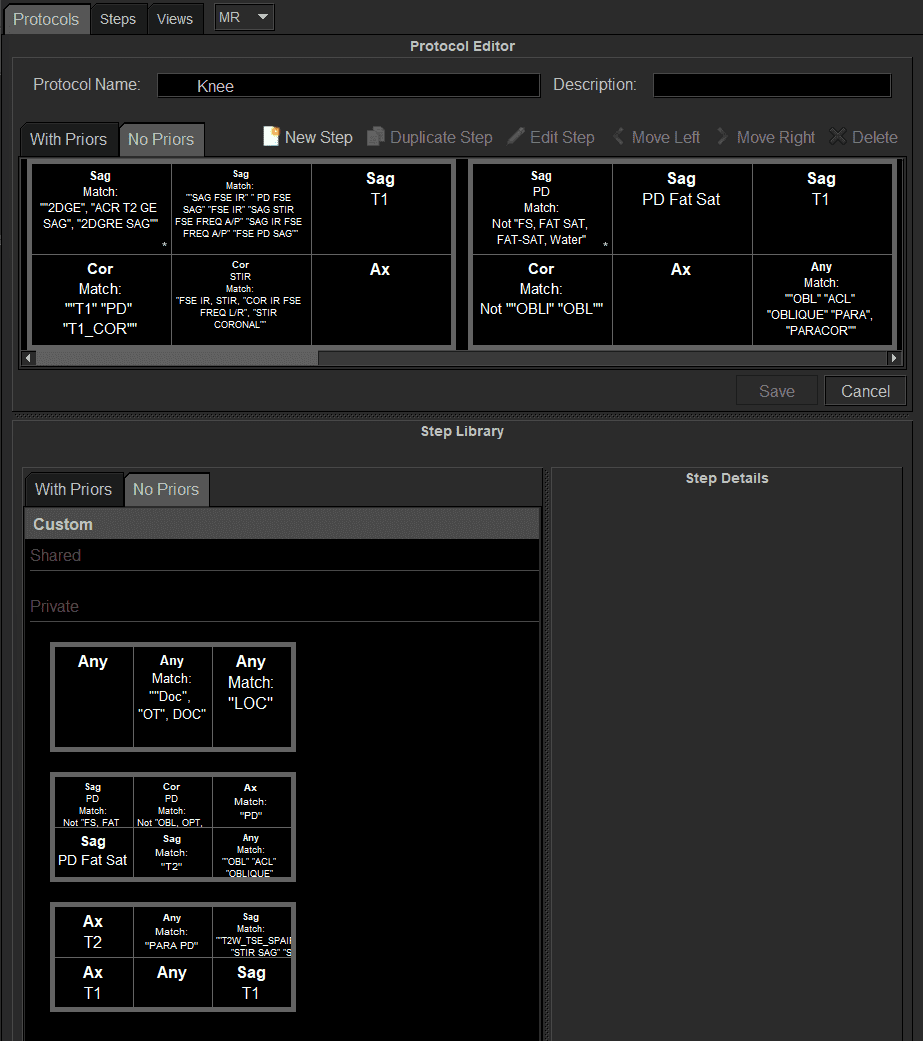
Figure 20: Creating a PACS hanging protocol. Screen excerpt showing creation of a custom hanging protocol for knee MRI exams using the InteleViewer PACS.
AutoHotKey
Autohotkey (AHK) is a free software allowing a Windows user to create macros which automate repetitive tasks, and subsequently map the macro to a personalized keyboard hotkey. Transforming a multistep mouse clicking and/or typing process into a simple single button click can be extremely powerful in a radiology workflow. A list of possible AHK radiology applications is shown in Table 2.
Table 2: AutoHotKey Uses Within Radiology
| Simulating dictation software commands (record, next field, previous field, sign, etc.) |
| Inserting VR templates for common exams |
| Navigating (select, show, hide, open, close) specific windows (PACS, VR, EMR, etc.) |
| Opening frequently used websites |
| Automatically entering passwords |
| Logging into multiple programs upon startup |
| View report of comparison study |
| Opening and navigating an EMR or RIS |
| Viewing a comparison study report |
| Opening a phone book directory |
| Looking up selected text in a search engine |
| Enabling “click-lock” to power scroll large data sets |
Many additional AHK use cases are possible, customizable to the needs and creativity of the user. Each custom macro (e.g. “open EMR window and enter password”) is subsequently mapped to a customized keyboard hotkey (e.g. F1, Ctrl-Shift-K, etc.). For optimum leverage, it is helpful to then map these custom hotkeys into a gaming pad (such as the Razor Pro or Contour Shuttle Pro V2) and/or a gaming mouse (such as the Logitech G604 or Razor Naga V2). A wonderful AHK feature (WinActivate) enables the macro to target a specific window with a given command, so that the hotkey doesn’t erroneously get sent to a non-target window. For example, if a PACS measuring tool is triggered by the letter “m”, this can be specifically sent into the PACS window, rather than the voice recognition software window or elsewhere.
With an open mind, learning AHK for basic radiology can be done relatively quickly; beginner tutorials and sample scripts are available on the AHK website. Several radiology specific AHK resources also exist (Table 3), which contain useful radiology specific scripts and can be simply copied for immediate use (Figure 21). Artificial Intelligence programs such as ChatGPT can even be used to write custom AHK scripts, making the process easier and more robust. The custom AHK scripts can be written within a simple text file such as Notepad. After computer startup, the radiologist activates the custom script by simply clicking on the AHK script file which then runs in the background. If desired, the script can also be configured to run automatically upon startup by adding it to a windows startup automation. For a deeper dive into AHK, consider reviewing online references in Table 3.
Table 3: Learning Resources for AutoHotKey Applications in Radiology
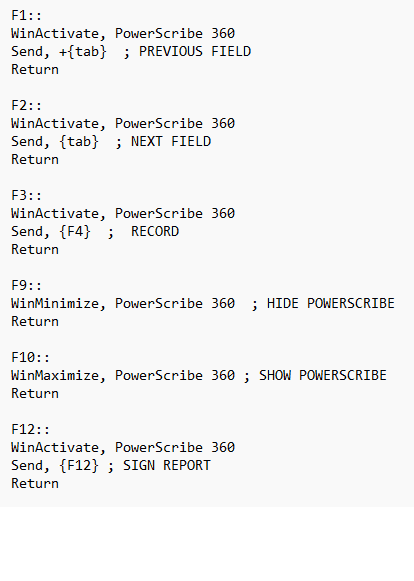
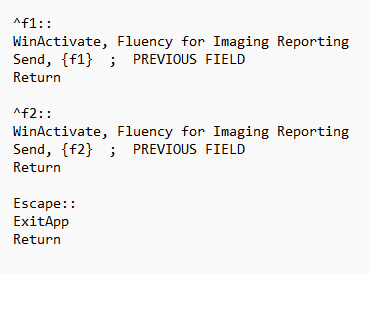
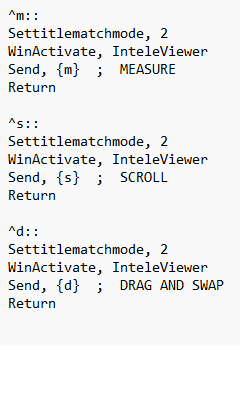
Figure 21: Examples of radiology AutoHotkey scripts. (21A) Script that maps various F keys to Powerscribe 360, specifically targeting the Powerscribe window, using the WinActivate feature. (21B) Script that maps various F keys to Fluency for Imaging, specifically targeting the Fluency for Imaging window, using WinActivate. (21C) Script that maps various keys to InteleViewer PACS, specifically targeting the PACS window, using WinActivate.
Travel Workstation Ideas for Teleradiology
As the world of mobile computing expands, so do the options for mobile teleradiology stations. Travel workstations have traditionally included a laptop with accessory monitors, however there are now several “Mini PC” options that allow desktop level computing power in very small boxes, just a bit bigger than a smartphone. An example of this is the Geekom Mini PCs (Figure 22a). Numerous mobile monitor options exist which can be high resolution, lightweight, and compact. Uperfect has several interesting options, including a model in which two separate 18.5” monitors can be folded in half, fitting into a laptop sized bag (Figure 22b).
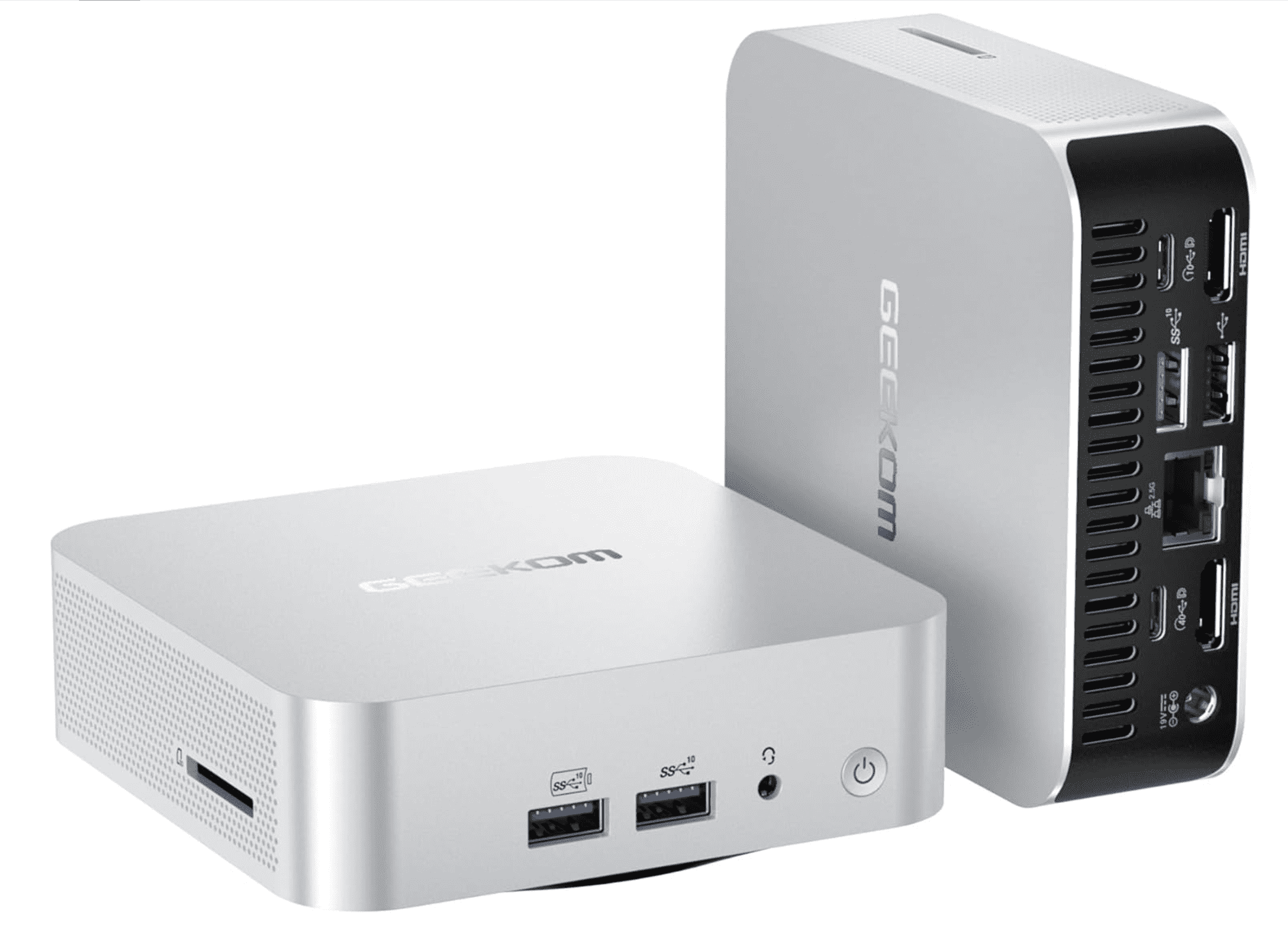
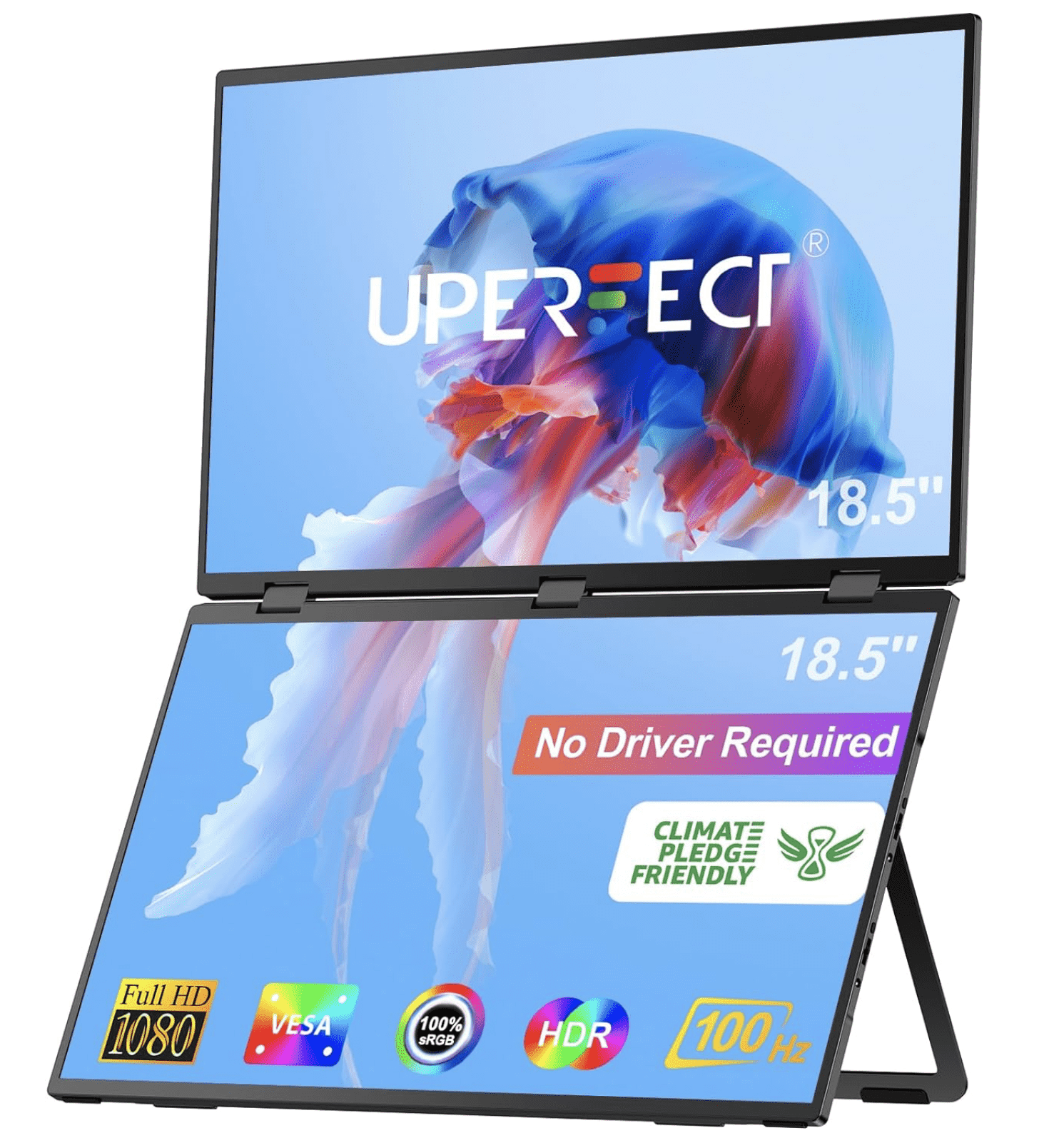
Figure 22: Examples of portable equipment that can be used to create a travel workstation. (22A) Miniature PC (GEEKOM A7 Mini PC with Windows 11 Pro). (22B) Mobile monitor (UPERFECT Delta 18.5" Dual Monitor Portable Monitor for Laptop Screen Extender).
Mobile safeguards against repetitive stress injury also exist. For example, travel risers can be used to create standing desks (Figure 23a). These could be also paired with a folding yoga mat, simulating an anti-fatigue standing mat (Figure 23b).
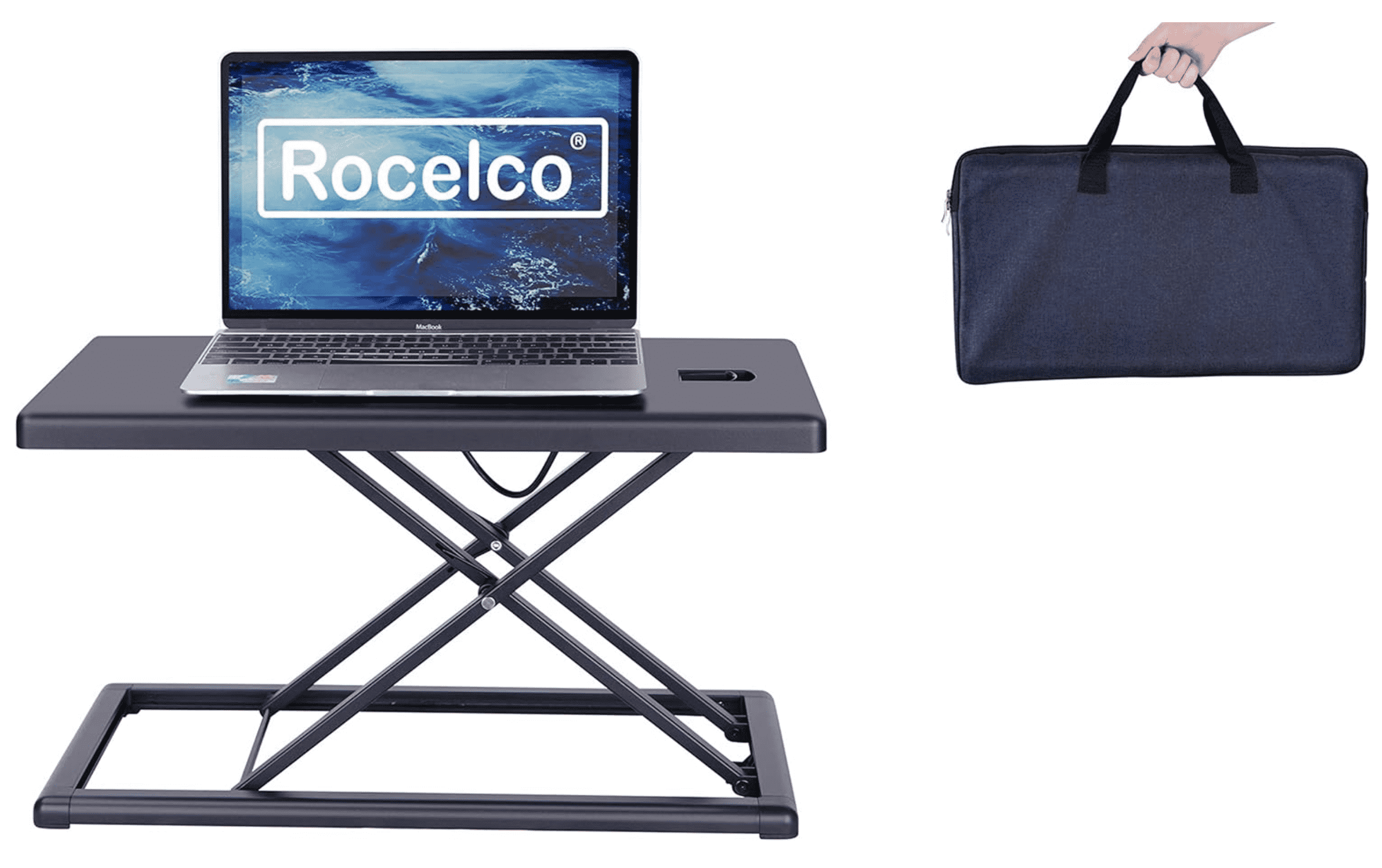

Figure 23: Mobile safeguards to reduce risk of repetitive stress injuries. (23A) Portable desktop riser (Rocelco 19" Portable Laptop Riser, Height Adjustable Travel Standing Desk Converter). Several of these could be combined to create an expanded workspace for multiple monitors. (23B) Portable anti-fatigue standing mat idea (Primasole Folding Yoga Travel Pilates Mat).
Summary
As radiologists, many of us love technology. Exploring new gadgets as they enter our workspace can be satisfying, particularly when we identify ones which can help us improve process flow and ultimately patient care. Technology changes quickly and undoubtedly the specific items in this web clinic will eventually become obsolete; however, the concept of maintaining a neuroplastic mindset and regularly re-evaluating one’s workspace will remain long after the tech is outdated. Paying attention to gaming technology developments is a strategic way to discover ideas which can be useful in radiology.
References
- Sze G, Bluth EI, Bender CE, Parikh JR. Work-Related Injuries of Radiologists and Possible Ergonomic Solutions: Recommendations From the ACR Commission on Human Resources. Journal of the American College of Radiology. 2017;14(10):1353-1358. doi:10.1016/j.jacr.2017.06.021 ↩
- Grigorian A, Fang P, Kirk T, et al. Learning from gamers: Integrating alternative input devices and autohotkey scripts to simplify repetitive tasks and improve workflow. Radiographics. 2020;40(1):141-150. doi:10.1148/rg.2020190077 ↩
- Omanson RC, Miller CS, Young E, Schwantes D. Comparison of mouse and keyboard efficiency. Proceedings of the Human Factors and Ergonomics Society. 2010;1:600-604. doi:10.1177/154193121005400612 ↩
- Peres SC, Tamborello FP, Fleetwood MD, Chung P, Paige-Smith DL. Keyboard Shortcut Usage: The Roles of Social Factors and Computer Experience. Proceedings of the Human Factors and Ergonomics Society Annual Meeting. 2004;48(5):803-807. doi:10.1177/154193120404800513 ↩
- Tak S, Westendorp P, Van Rooij I. Satisficing and the use of keyboard shortcuts: Being good enough is enough? Interact Comput. 2013;25(5):404-416. doi:10.1093/iwc/iwt016 ↩
- Denton K, Haider I, Hill J, Hunt SL, Ash R. Of Mice and Roentgen: Radiologist Satisfaction with a Non-conventional 13-Button Mouse—One Institution’s Experience. J Digit Imaging. 2018;31(6):776-782. doi:10.1007/s10278-018-0094-7 ↩
- Remington RW, Yuen HWH, Pashler H. With practice, keyboard shortcuts become faster than menu selection: A crossover interaction. J Exp Psychol Appl. 2016;22(1):95-106. doi:10.1037/xap0000069 ↩
- Benjamin White M. AutoHotkey for Radiology. BenWhite.com. August 25, 2023. Accessed September 15, 2024. https://www.benwhite.com/radiology/autohotkey-for-radiology/ ↩
- Daniel Hofstedt D. Streamline Your Radiology Workflow with AutoHotKey. Radshare. March 4, 2023. Accessed September 15, 2024. https://www.radshare.net/articles/6 ↩
- Arjun Sharma. AUTOMATION II – AUTOHOTKEY OVERVIEW. ARJUN SHARMA’S RAD/TECH BLOG. April 1, 2016. Accessed September 15, 2024. https://arjunsharmarad.wordpress.com/2016/04/01/automation-ii-autohotkey-overview/ ↩
